Products – What They’re For & How To Use Them.
Important. If you only have a one off item. Then complete the Quantity section with a Qty of One
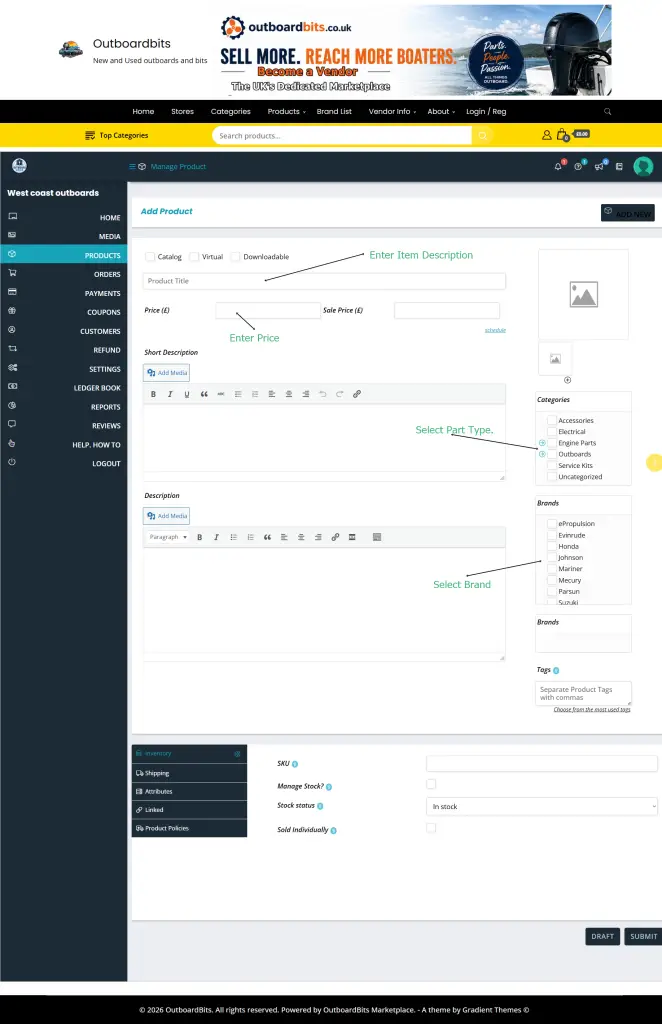
The Products section allows vendors to create, edit, and manage the items they sell on the marketplace.
This is where you add outboards, spare parts, propellers, carburetors, ignition parts, and other marine equipment for customers to purchase.
What Can You Do in the Products Section?
Vendors can:
- Add new products
- Edit existing listings
- Set prices
- Upload product images
- Manage stock
- Add shipping information
- Add part numbers and compatibility details
- View product status
How To Add a New Product
- Log into your Vendor Dashboard.
- Click Products from the left-hand menu.
- Select Add New.
- Enter your product information.
- Upload product images.
- Set your price.
- Configure shipping options.
- Select the correct category and brand.
- Click Submit or Publish.
Important Product Information To Include
Good product listings help buyers find the correct part quickly.
Try to include:
- Manufacturer
- Horsepower
- Engine year
- Part number
- Alternative part numbers
- Condition
- Compatibility
- Any faults or damage
Example:
“Johnson 70HP carburetor removed from a running engine. Good used condition with no cracks. Part number 319230.”
Product Types
Depending on marketplace settings, you may see:
Simple Product
Used for single items with one price.
Example:
- One propeller
- One ignition coil
- One carburetor
Variable Product
Used when a product has multiple options.
Example:
- Different shaft lengths
- Multiple sizes
- Different colours
Product Images
Clear photos are extremely important.
Recommended:
- Multiple angles
- Close-up of part numbers
- Any damage clearly shown
- Clean backgrounds
Pricing Your Products
When setting prices, consider:
- Condition
- Rarity
- Shipping cost
- Market demand
Be realistic with used parts pricing.
Managing Stock
If stock management is enabled, you can:
- Set stock quantity
- Mark products as in stock
- Mark products as out of stock
This helps prevent overselling.
Product Categories & Brands
Always select the correct category and brand.
This helps buyers filter products and improves search results.
Examples:
- Johnson
- Evinrude
- Mercury
- Yamaha
- Mariner
Shipping Settings
Before publishing products:
- Set shipping costs
- Choose shipping zones
- Add handling time if needed
Incorrect shipping settings may prevent checkout.
Drafts, Pending & Published Products
Draft
Only visible to you.
Pending Review
Waiting for marketplace approval (if moderation is enabled).
Published
Visible to customers and available for purchase.
Common Mistakes
- Missing part numbers
- Incorrect engine year
- Blurry photos
- No shipping cost
- Wrong category selected
- Poor descriptions
Tips for Better Sales
- Use accurate titles
- Add several photos
- Be honest about condition
- Include compatibility details
- Respond to customer questions quickly
Professional listings build trust and improve sales.
Need Help?
If your store doesn’t look right:
support@outboardbits.co.uk
performance.